
How to Find a TV Code
If you’re replacing your TV remote with a universal one, you need to find the right TV code. This could be because your old remote stopped working, or you want one remote to control several devices.
A universal remote can control various devices. It works with different TVs, sound systems, and DVD players. Each TV brand—and sometimes each model—has its own codes. For example, older Samsung TVs use different codes than newer models.
So, how do you find the right code? Knowing this is key to syncing your remote correctly.
Check the Manual

The easiest way is to look in the manual that came with your universal remote. Sometimes, the codes are printed on the packaging or included as a separate sheet.
Explore our expert picks for the best TV antennas of the year.
Visit the Manufacturer’s Website
You can visit the manufacturer’s website. There, you can search for TV brand codes, especially for your Samsung TV model.
After you find the code, follow the instructions in your remote’s manual to sync it with your TV. This step makes sure your remote works well and is fully compatible.
Once synced, you can easily use features like casting or signing into YouTube on your TV without any trouble.
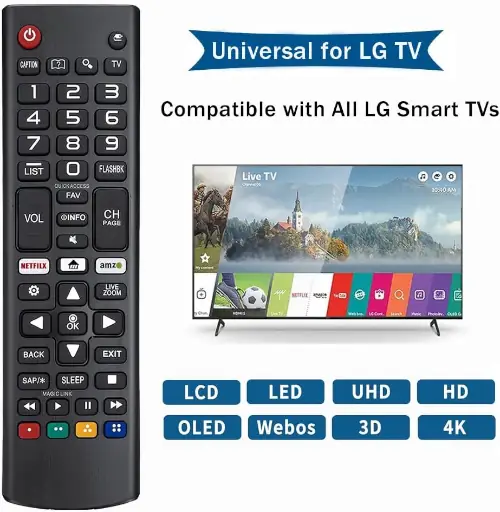
Buy on Amazon
How to Program a Universal Remote
There are different ways to set up a remote control to work with your TV, especially if you have a newer Samsung model.
What’s the Difference Between a Universal Remote and a Regular TV Remote?
A universal remote is not like a regular TV remote. It has special software that allows it to control many devices. These remotes are often made by specific companies but can usually work with lots of brands.
Why Use a Universal Remote?
With one remote, you can control multiple devices and appliances in your home at the same time. To connect the remote to each device, you need to follow a certain setup process called remote configuration.
The Easiest Way to Program Your TV with a Universal Remote
Most people use the automatic setup mode on their universal remote. It is easy and does not require special skills. If you have QLED or LED TVs that support CEC (Consumer Electronics Control), make sure all your devices are on the same Wi-Fi network for casting to work properly.
Connecting Other Devices Like an ATSC Tuner
When connecting other devices like an ATSC tuner, follow the instructions carefully to ensure everything works smoothly together.
Sansui has released three OLED TV models—55″, 65″, and 77″—with the 55-inch version starting at just $800. Explore the full lineup here.
How to Automatically Connect Your Remote Control to the TV
In the automatic setup, the remote tries all the codes one by one. It sends a power-off command to the TV, which should be turned on at first. If the TV turns off, that means the code works. Then, press the OK button to confirm within 2 seconds. Some remotes may use a different button instead of OK.
This process can take about 15 minutes, and you need to stay near the TV to press OK on time.
Steps to set up your remote this way:
- Turn on your TV and point the remote at it.
- Press and hold the [SET] or [POWER] button. The remote will start scanning for devices and find a matching code. When the indicator light turns on, release the buttons. If it blinks, it means it’s searching for the right code.
- Or, enter “9999” on the remote by holding down the last 9 until the search finishes and devices sync.
When you see a MUTE icon and hear a sound, your remote is ready to use with your TV.
If you have a Samsung TV and want to find its code, check your TV’s model number in its settings or on the device itself. This helps connect apps like YouTube easily. Also, if you want voice control, learn how to link YouTube on your phone or tablet to your smart TV using a code for a smooth experience.
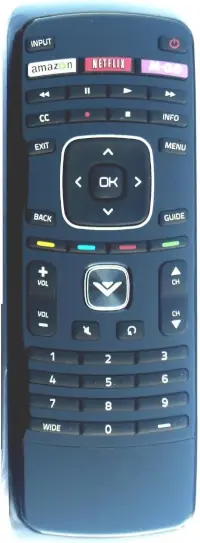
Buy on Amazon
Manual Method
The manual method of programming a remote is quicker and easier. This section, along with the manufacturer code list, helps you find your device type and its maker. Each manufacturer assigns up to 40 four-digit codes for each model.
To sync manually, first enter programming mode. Instructions are usually in the remote’s manual. Different brands use different steps, often starting by pressing the [SET/POWER] button. Point the remote at the TV and press this button.
- Press and hold the [TV] button on the remote for 3 seconds until the light turns on. Depending on your remote or brand, you might need to press one of these key combos:
- POWER + SET
- POWER + TV
- POWER + C
- TV + SET
- Then enter the digital code. The light will turn off when the code is accepted.
- Test it by pressing the channel buttons. If the TV doesn’t respond, go back to step 1 and try the next code. Keep trying until it works.
Manufacturers provide up to 40 codes for popular TV models, so finding the right one may take 10 to 40 tries. Test after each attempt to see if it works!
Even if the remote controls your TV, some functions might not work perfectly. You can change channels and volume, but menu settings might not respond.
Keep trying—you may find up to 5 more codes that work.
One code will be best for your TV, allowing all features like menus and Teletext to work fully. The number of codes and tries depends on how popular your TV brand is.
Once set up, your remote becomes a cheap and useful replacement for the original after about 15 minutes of reading instructions and tuning.
Sometimes, none of the listed codes will work, making setup hard.
If this happens, try auto-tuning instead.
Problems can also occur if your remote model isn’t compatible with your TV. Before buying a remote, check that its code list matches your TV brand and read its specs carefully.
Also, weak signals from dead batteries can cause issues—make sure all devices have fresh batteries before starting.
If you want info like how to find Samsung TV model codes or what their letters mean, check your manufacturer’s guide or website for help.
For those interested in extra features, learn how to cast YouTube videos from your phone to your TV smoothly while keeping your remote properly programmed!
Need help choosing the right TV? Check out our complete buying guide for 2025 with tips on features, sizes, and pricing.
How Do I Find My 4-Digit TV Code?
To use your universal remote with your TV, you need the right 4-digit code for your TV model. Codes can be 2 to 5 digits long, but most are 4 digits. This helps make sure your remote works with your TV.
These codes aren’t official and were collected by a third party to help you find a compatible remote.
You can find these codes in:
- Company websites
- Instruction manuals
- Lists showing codes for each model
No matter if you have a Plasma, LCD, DLP, or OLED TV, it’s important to find the correct code.
If you want to know your TV’s screen size from the model number or learn how to connect or disconnect devices for YouTube casting, check the right guides for those details.
Finding the Code from the Manual
Start by checking the instructions that come with your remote control. They usually include codes for popular TV models. These codes can be very different, so it’s important to look at both the remote’s guide and your TV’s manual.
Your TV’s manual may also have the universal remote codes you need to set it up correctly. Remember, code lists vary by manual, and TV model codes can change based on the brand and year.
Codes might be in your TV’s manual or on a separate paper that came with it. There could be several codes for your TV model, so try entering them one at a time when programming your remote.
If you live in North America or Europe, know that different regions use certain broadcasting standards like DVB or ISDB-T tuners, which can affect which TV codes apply.
Also, if you want to connect devices not on the same Wi-Fi network, understanding region and model details from these codes is helpful. For streaming, you might want to learn how to connect your phone to your TV for easy YouTube access.
Also read: How many TVs can you connect to one antenna—and what equipment you’ll need.
How to Find the Code Online
If the owner’s manual doesn’t have the code you need, don’t worry! You can easily find it online. Here’s how:
- Find your remote’s model number: Check under the battery cover or look it up online. You’ll need this when searching for TV codes.
- Search for TV codes: Type your TV brand plus “universal remote control codes” into a search engine.
- Open helpful links: Click on results that list codes by TV brand. You can also visit Samsung’s Support website for programming guides.
- Follow the instructions: Use the programming steps provided and try different codes until one works.
- Know your Samsung TV model number: Understanding your TV’s model number helps you find the right code, especially between older and newer models.
By doing this, you’ll be able to connect your devices using TV codes and control things like YouTube on your smart TV with your phone or voice commands.
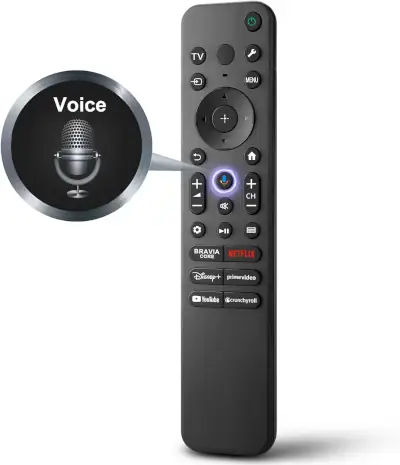
Buy on Amazon
Using Code Search
Another way to find your TV code is by using the automatic code search feature. The universal remote will go through its list of codes one by one during this process.
Here’s how to do it:
- Turn on your TV.
- Press the [Search Code] button on the remote until the indicator light turns on.
- Press and hold the [TV] button until the TV turns off and then back on.
- Press [Enter] to save the code.
Note: When the remote finds the right code, it will turn off your TV. If it doesn’t, the TV will stay on. Keep repeating these steps until the TV turns off.
Sometimes, you might not know your remote’s code. In that case, you can use the auto-tuning function available on most universal remotes. This lets you search for codes without needing to enter any numbers.
When using auto-tuning, make sure your remote is compatible with your TV and consider details like your TV’s screen size or model number. If you run into problems, check for issues with casting profiles or supervised accounts on YouTube, or see if you need to disconnect casting through your Google account settings.
By following these steps and tips, you can easily find the right code and connect your universal remote to your TV.
How to Get the Code from the Manufacturer
Like before, find your remote control’s model number and contact the manufacturer’s support team. Ask if they have the right code for your universal remote.
You can find the remote’s model number at the bottom of the front panel.
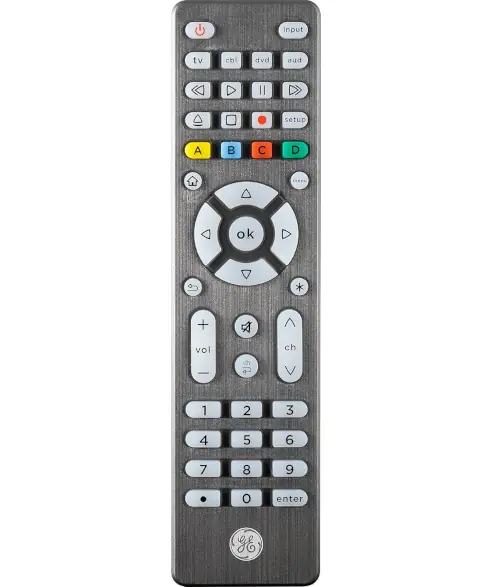
Buy on Amazon
Common 4-Digit Codes for Popular TV Brands
Here are some 4-digit codes for universal remotes. It’s best to program your remote using the codes for your specific TV model. Each brand has several codes, so try them one at a time when setting up your remote.
- LG TV codes: 0050 0005 0227 0037 0056 0442 0001 0370 1178 0002 0009 0377 0032 0556 0003 0217 0019 0030 0714 0038 0216 0431 0290 0163 0644 0060 0178 0108 0606 0109 0700 1934 1926 0698 0715 0823
- Loewe: 0512 0633 0790 0037 0556 0655 0370 0087 0292 0362 0516
- Panasonic TV codes: 0171 0148 0054 0051 0650 0226 0108 0250 1924 0054 0037 0214 0556 0163 0208 0361 0227 0367 0508 0340 0516 0548 1210 1310 1930 0001 0853 1941
- Philips: 0037 0054 0556 0056 0238 0012 0721 0000 0554 0019 0191 0020 0087 0774 0193 0747 0423 0187 0186 0343 0178 0108 0570 0024 0374 0028 0030 0092 0032 0051 0772 0009 0200 1154 1454 0080 1756
- Samsung TV codes: 0019 0618 0644 0105 0077 0076 0019 0618 0644 0056 0060 0587 0037 0178 0030 0556 0009 0702 0774 0093 0217 0448 0747 0482 0370 0264 0329 0090 0032 0216 0290 0154 0150 0092 0072 0179 0208 0519 0156 0163 0625 0226 0812 0817 0821 1060
- Sony TV codes: 0000 1505 1651 0011 1010 0036 0650 1100 1925 0102 0353 0111 0037 0080 0556 0157 0834
- TCL: 0727 0806 0826 0412 0698
- Vizio: 1004 1007 1011 1018 1047 1053 1056 1057 1059 1060 1061 1083 1168 1169 1329 1358 1372 1414 1471 1741 2021 2901 3351 3651 3741 3851 4081 5109 5115 5138 5139 5343 5450 5561 5571 5581 5591 5601 5611 5621 5631 5641 5651 5661 5671 5681 5691 5701 5711 6111 6121 6131 6471 6511
Having these codes ready will help you set up your universal remote easily. Since each brand uses different codes, check their lists carefully. If you’re unsure about anything, don’t hesitate to contact the manufacturer’s support team for help.
Want to protect your home theater setup? Learn how to choose the right power manager and improve performance.
Problems and Solutions
A universal remote control can’t completely replace the original remote because of some limitations. Here are the main issues to keep in mind:
- Setting up the remote means you need to enter the correct code for your device. Check the specific TV tuner codes for your equipment to make sure it works right.
- Sometimes you need to reset the remote. When changing batteries, don’t take them all out at once—replace them one at a time so the remote doesn’t lose power during the swap.
- The button icons on universal remotes may not always match their functions. Many don’t have dedicated buttons for volume, channel changes, or power off. Even if these buttons work, you might not be able to use all features like with the original remote.
- Make sure your universal remote is compatible with your receiver, player, or TV. If your remote stops working, don’t buy just any cheap universal remote—it might be less durable and miss important features compared to brand-name options.
Getting a remote exactly like the original is often not possible, so a universal remote is usually the best option.
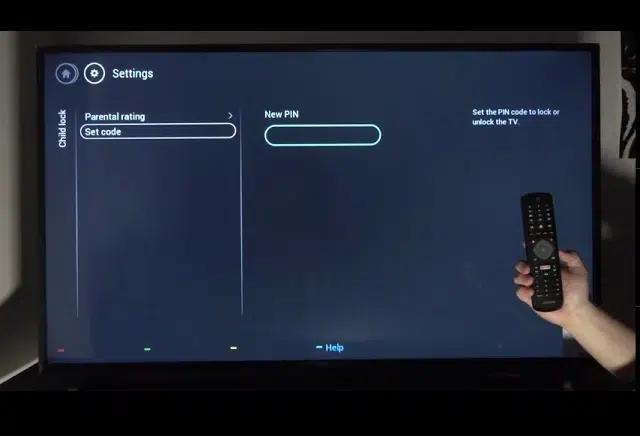
Example remote control setting in the video:
FAQ
How do I find my TV code for the remote?
To find your TV code, check the user manual for your remote control—there’s usually a section dedicated to TV codes. Sometimes this information is printed on a separate sheet inside the package. You can also search online for universal remote code lists. If you still can’t find the right code, contact the TV manufacturer for help.
What is the 4-digit code for Samsung TV?
Samsung’s default PIN code is 0000. Other common four-digit codes for Samsung TVs include 0060, 0812, 0702, 0178, and 0030. You’ll find more codes in the main article.
Where can I find my TV remote code?
You can find your TV remote code in the user manual that came with your remote. It usually includes a list of codes for different brands and instructions on how to program them.
How do I find the TV code to program my universal remote?
You can find the unique 2-5 digit TV code in your universal remote's manual, packaging, separate insert, or on the manufacturer's website. Searching online by typing "universal remote control codes" followed by your TV brand is also effective.
What are the methods to sync a universal remote with my TV?
There are two main methods: automatic setting mode and manual method. In automatic mode, the remote cycles through codes until it turns off your TV; then you press OK for 2 seconds to save. In manual mode, you enter programming mode by pressing the TV button for 3 seconds, then input key combinations and codes until your TV responds.
Why might my universal remote not fully control my TV even after programming?
This can happen if the remote model is unsuitable or due to weak signals from dead batteries. Also, some universal remotes have limitations like missing volume/channel buttons or inability to connect with certain devices. It's advisable to check compatibility lists and try multiple working code combinations for optimal functionality.
Can I use one universal remote to control multiple home appliances?
Yes, many universal remotes are designed to configure and control multiple home appliances such as TVs, receivers, and players. However, note that some functions might be limited depending on the remote's compatibility and features.
Where can I find standard 4-digit codes for popular TV brands?
Standard 4-digit codes are available for many well-known brands: LG (36 codes), Loewe (11), Panasonic (28), Philips (38), Samsung (47), Sony (16), TCL (5), and Vizio (60). These codes can often be found in your remote's manual or online resources.
What should I do if I cannot find a working code for my TV on the universal remote?
If you can't find a suitable code, try using the automatic code search function on your universal remote. If that fails, contact the manufacturer's technical support with your remote's model number for assistance in obtaining the correct code.

Great tips! I had no idea about using the remote control to access the settings menu. That really saved me a lot of time. Looking forward to trying out these methods in 2025!
Great tips! I always struggle to find the right TV code for my universal remote. Your step-by-step guide made it so much easier! Thanks for sharing!
Great tips! I always struggled with finding the right TV code for my universal remote. Your step-by-step guide is super helpful, especially the part about checking the TV brand’s website. Can’t wait to try these methods in 2025! Thanks for sharing!
Well
Great tips! I always struggled to find the right code for my universal remote. The step-by-step guide was really helpful, and I appreciate the extra tips for troubleshooting. Can’t wait to try this out for my new TV!
My remote control is trisonic ts-rc411 i need the code please